GitHub Pages
GitHub Pages turns any GitHub repository into a live website. It is free, requires no server setup, and updates automatically when you push changes.
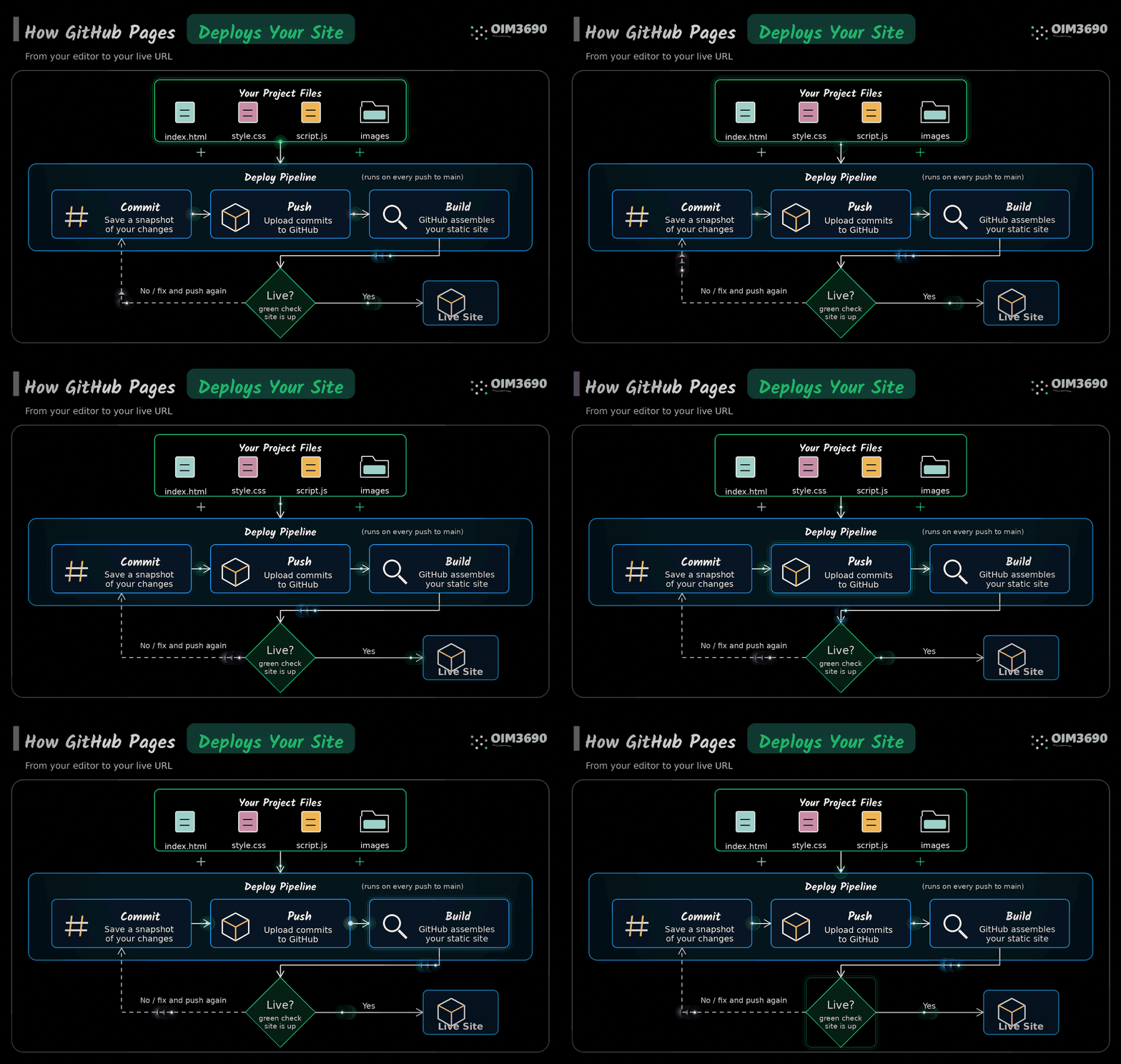
1. Activate GitHub Pages on a Repo
- Go to your repository on github.com
- Click Settings (top menu bar, near the right)
- Click Pages (left sidebar, under "Code and automation")
- Under "Source," select Deploy from a branch
- Under "Branch," select main and / (root)
- Click Save
- Wait about two minutes. Refresh the page. A URL will appear at the top.
2. Your Personal Site
To create a personal site at <your-github-username>.github.io:
- Create a new repository named exactly
<your-github-username>.github.io, all lowercase, with your own username in place of the angle brackets - The repo name must match your username exactly. If your username is
jsmith25, the repo must bejsmith25.github.io. - Add an
index.htmlfile and push it - GitHub Pages usually turns on by itself for this repo. Your site will be live at
https://<your-github-username>.github.io - If the URL still shows a 404 after a few minutes, open Settings > Pages as in step 1 and set the source to main and / (root)
3. Project Sites
Any other repo with Pages enabled becomes a project site.
- Repo named
portfoliobecomeshttps://<your-github-username>.github.io/portfolio - Repo named
homework-1becomeshttps://<your-github-username>.github.io/homework-1
You can have as many project sites as you want. Each one is its own repo.
4. Check if Your Deploy Succeeded
Option A: Go to your repo on GitHub. Look at the most recent commit. A green checkmark means the deploy finished. An orange dot means it is still building.
Option B: Go to Settings > Pages. If the deploy worked, you will see your site URL with a "Visit site" link.
5. Troubleshooting
Page shows your README instead of your site
- Your homepage must be named
index.html(lowercase, exact spelling) - GitHub shows README.md by default if no
index.htmlexists
404 error
- For personal sites: double-check that the repo name matches your username exactly
- For project sites: make sure Pages is enabled in Settings
- Wait two minutes after your first push. GitHub needs time to build.
CSS or images not loading
- File paths on GitHub are case-sensitive.
Styles.cssandstyles.cssare different files. - Use lowercase for all file and folder names
- Use relative paths:
css/styles.css, not/css/styles.cssorC:\Users\...
Changes not showing up
- Make sure you pushed your changes (check the commit on github.com)
- Hard refresh your browser:
Cmd+Shift+R(macOS) orCtrl+Shift+R(Windows) - Wait two minutes for GitHub to rebuild the site
Last updated: Wednesday, 9/23/2026