Git Basics
What Is Git?
Git is a version control tool. It tracks every change you make to your files so you can go back to any previous version.
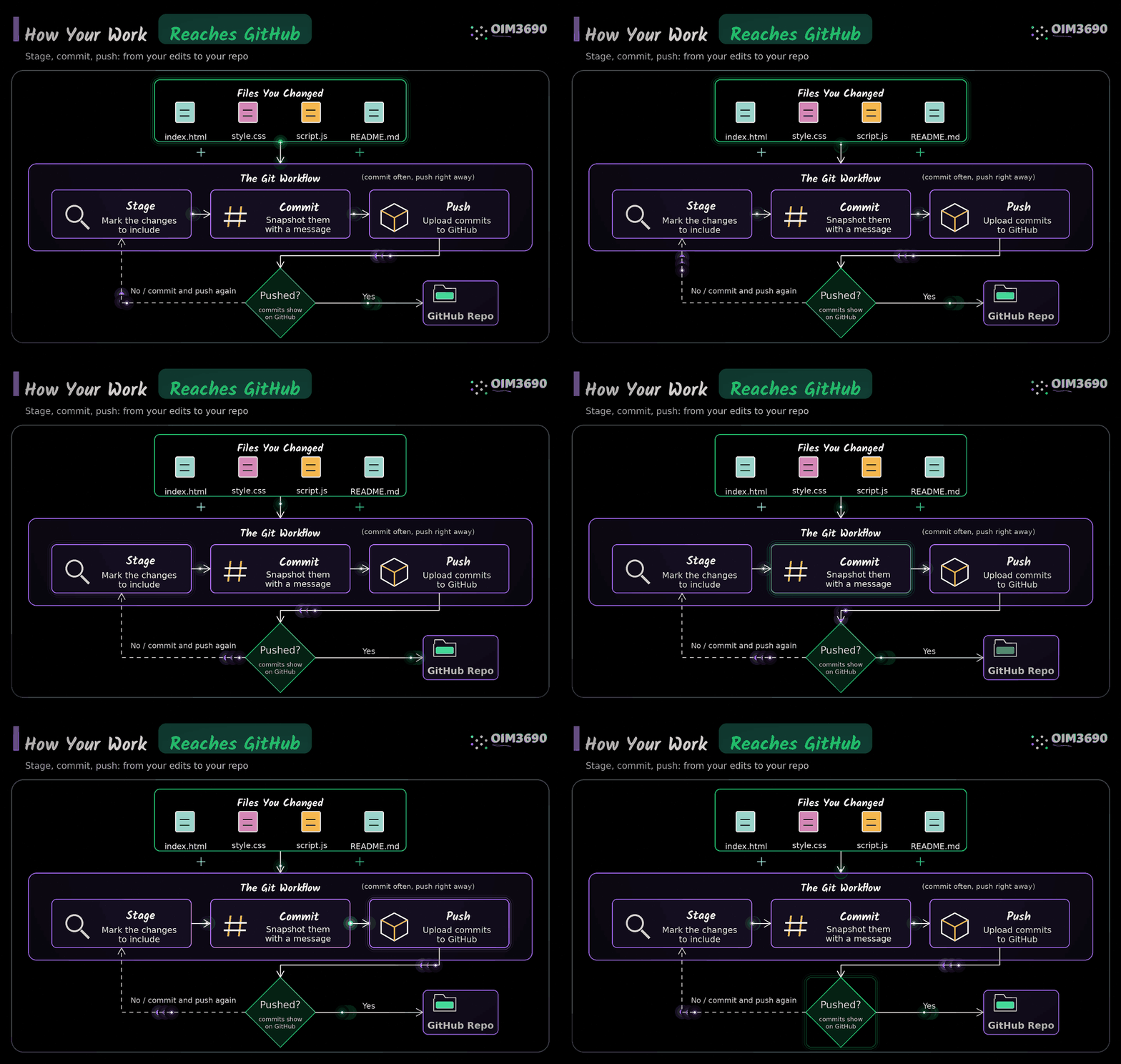
Local vs Remote
Your project lives in two places:
flowchart LR
    A["Your Computer\n(local repo)"] -- "push" --> B["GitHub\n(remote repo)"]
    B -- "pull" --> A
C["Your edits"] -- "commit" --> A- Commit saves a snapshot of your changes locally
- Push uploads your commits to GitHub
- Pull downloads the latest changes from GitHub to your computer
Changes you make on your computer are not on GitHub until you push. If you only commit but forget to push, your work is saved locally but not backed up online.
Find the Source Control Tab
In VS Code, look at the left sidebar. Click the icon that looks like a branching line (third icon from the top). This is the Source Control tab. It shows every file you have changed since your last commit.
How to Commit
A commit is a snapshot of your work. Think of it like saving a checkpoint in a video game.
- Make sure your files are saved (
Ctrl+Son Windows,Cmd+Son macOS) - Open the Source Control tab
- You will see your changed files listed under "Changes"
- Click the + icon next to each file to stage it (this tells Git "include this file in my snapshot")
- Type a short message in the text box at the top that describes what you changed
- Click the Commit button
How to Push
Pushing sends your commits to GitHub so they are saved online.
- After you commit, click the Sync Changes button that appears in the Source Control tab
- This uploads your commits to GitHub
If you see a Push button instead of Sync, click that. Both do the same thing.
Commit and Push Often
Do not wait until your project is "done" to commit. Commit after each meaningful change: finishing a section, fixing a bug, adding a new file. Then push right away.
- If your computer crashes or you accidentally delete something, your latest work is safe on GitHub.
- Small commits are easier to understand when you look back at your history.
- Your instructor can see your progress. A repo with one giant commit at the deadline looks very different from a repo with steady work over the week.
A good rhythm: every time you save and your code works, commit and push.
How to Pull
Pulling downloads the latest changes from GitHub to your computer. This matters when you work from multiple computers or when a collaborator makes changes.
- Open the Source Control tab
- Click the Sync Changes button
- This pulls any new changes down and pushes your local commits up
Git in the Terminal
Everything in the Source Control tab has a Git command behind it, and you can type those commands yourself. Open a terminal in VS Code with Terminal → New Terminal. It starts in the folder you opened, so the commands act on that repository.
| What you want | Command |
|---|---|
| See what changed and what is staged | git status |
| Stage one file | git add index.html |
| Stage every change | git add . |
| Commit with a message | git commit -m "Add contact form" |
| Send your commits to GitHub | git push |
| Get the latest from GitHub | git pull |
| See the history, one commit per line | git log --oneline |
Sync Changes in VS Code does git pull and then git push. When git log fills the screen, press q to get back to the prompt.
File and Repo Naming Rules
Use these rules for all file names, folder names, and repo names:
- All lowercase:
about-me.html, notAbout-Me.html - No spaces: use hyphens instead.
my-project, notmy project - No special characters: stick to letters, numbers, and hyphens
| Bad | Good |
|---|---|
About Me.html |
about-me.html |
My Project |
my-project |
Final_Project (1).html |
final-project.html |
Homework 3/ |
homework-3/ |
Spaces and uppercase letters cause problems with URLs, terminal commands, and deployment.
Repo Settings on GitHub
Rename a repo:
Go to the repo on github.com, click Settings, scroll to "Repository name," type the new name, and click Rename. If you rename your <your-github-username>.github.io repo, your site URL will break.
Delete a repo: Settings, scroll all the way to the bottom to "Danger Zone," click Delete this repository. This cannot be undone.
Change visibility (private to public):
Settings, scroll to "Danger Zone," click Change visibility. Your <your-github-username>.github.io repo and oim3690 repo should both be public.
Rename a file: In VS Code, right-click the file in the Explorer sidebar and select Rename. Commit and push after renaming. On github.com, navigate to the file, click the pencil icon, and change the file name at the top.
Delete a file: In VS Code, right-click the file and select Delete. The deletion shows up in Source Control as a change. Commit and push to remove it from GitHub too.
Common Issues
"Nothing to commit"
Your files are not saved. Press Ctrl+S (Windows) or Cmd+S (macOS) to save, then check the Source Control tab again.
"Please configure user.name and user.email"
Git does not know who you are yet. This is a one-time setup. Open the VS Code terminal (Ctrl+`) and run these two commands with your own name and email:
git config --global user.name "Your Name"
git config --global user.email "your-email@example.com"
Then try your commit again.
Merge conflicts This happens when your computer and GitHub both changed the same lines of a file. VS Code puts buttons above each conflict: Accept Current Change keeps your version, Accept Incoming Change keeps the version from GitHub, and Accept Both Changes keeps both. Choose one for every conflict, save the file, then commit and push. If you are not sure which version to keep, ask the instructor before you choose.
Commit Message Tips
Write a short message that says what you changed. Start with a verb.
| Good | Bad |
|---|---|
| Add contact form | update |
| Fix broken image link | stuff |
| Style navigation bar | changes |
A good commit message helps you find specific changes later when you look back at your project history.
Your Turn
- Open one of your project files in VS Code and make a small change (add a comment, fix a typo)
- Save the file
- Open the Source Control tab, stage the change, and write a commit message
- Commit, then push to GitHub
If you see your change on GitHub, you are all set.
Last updated: Monday, 9/14/2026